Crop one image for square posts and tall stories
Keep the subject in the frame when one image needs several shapes.
A square post and a tall story cannot show the same amount of a landscape image while filling the frame. Resizing changes the pixel dimensions. Cropping decides what stays visible.
Here is a 1200 × 800 sample with three subjects spread across the width. Subject 3 is near the right edge.
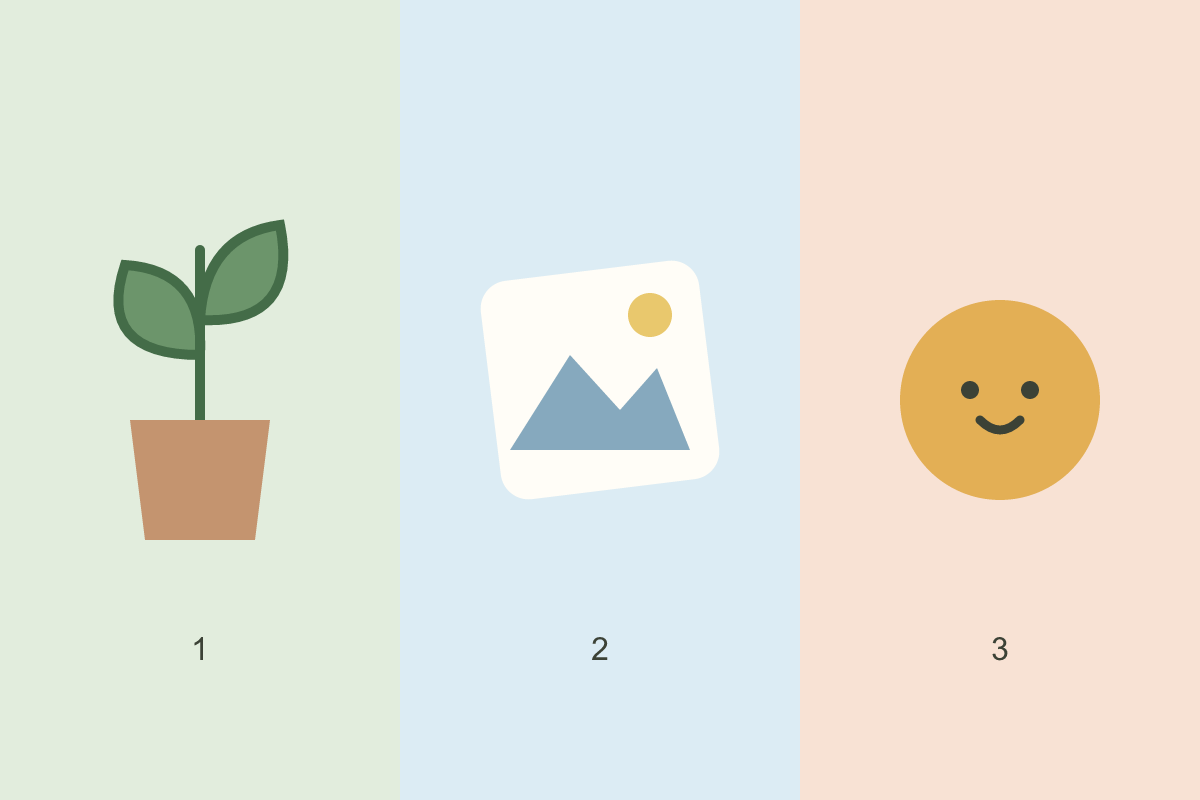
Download the original PNG and open it in Social image pack.
See what each ratio removes
At the default centred position and Crop zoom of 100%, these presets use the following areas of the original:
| Preset | Export size | Area kept from the original |
|---|---|---|
| Square post | 1080 × 1080 | 800 × 800 |
| Portrait post | 1080 × 1350 | 640 × 800 |
| Story / short cover | 1080 × 1920 | 450 × 800 |
| Landscape / link card | 1200 × 630 | 1200 × 630 |
The square discards 200 source pixels from each side. The tall story discards 375 from each side, cutting out the smiling circle. The landscape version keeps the full width but trims 85 pixels from the top and bottom.
These are the tool's export presets, not a promise that every platform will display the whole file. Feed previews, profile grids and interface overlays can apply their own crops.
Move each crop to its subject
- Choose Square post under Adjust preview.
- In Crop, drag the crop area to the right until the circle fits. The dimmed area shows what will be left out.
- Switch to Result to check the actual composition.
- Choose Story / short cover and adjust that crop separately. Your square crop stays saved for this image.
- Use Download this size when a version is ready.
To reproduce the samples exactly, set Horizontal position to 100, Vertical position to 50 and Crop zoom to 100%. The square then uses source pixels 400–1200 across; the story uses 750–1200. Both keep the circle intact.
Compare the centred square with the right-aligned square, then the centred story with the right-aligned story.
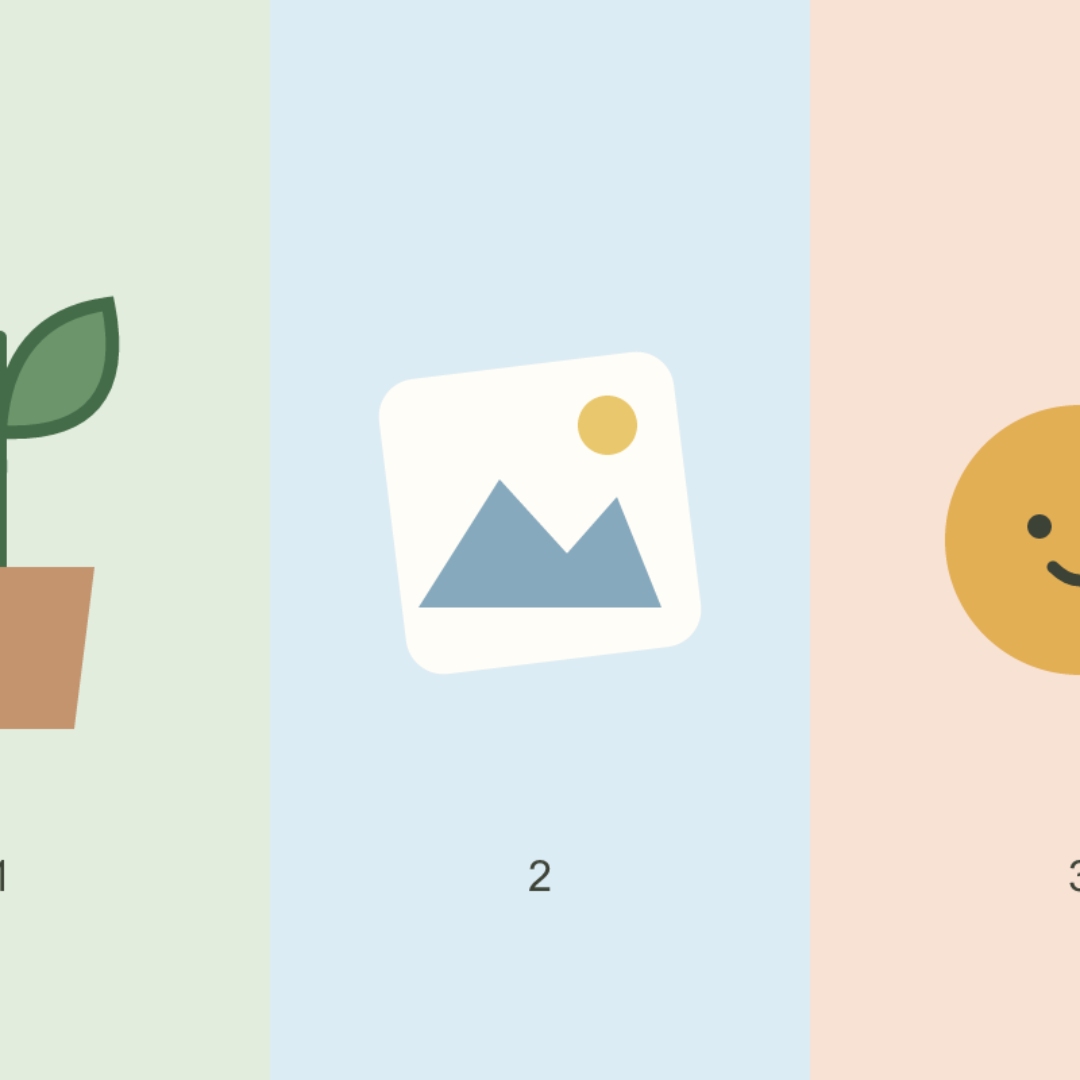
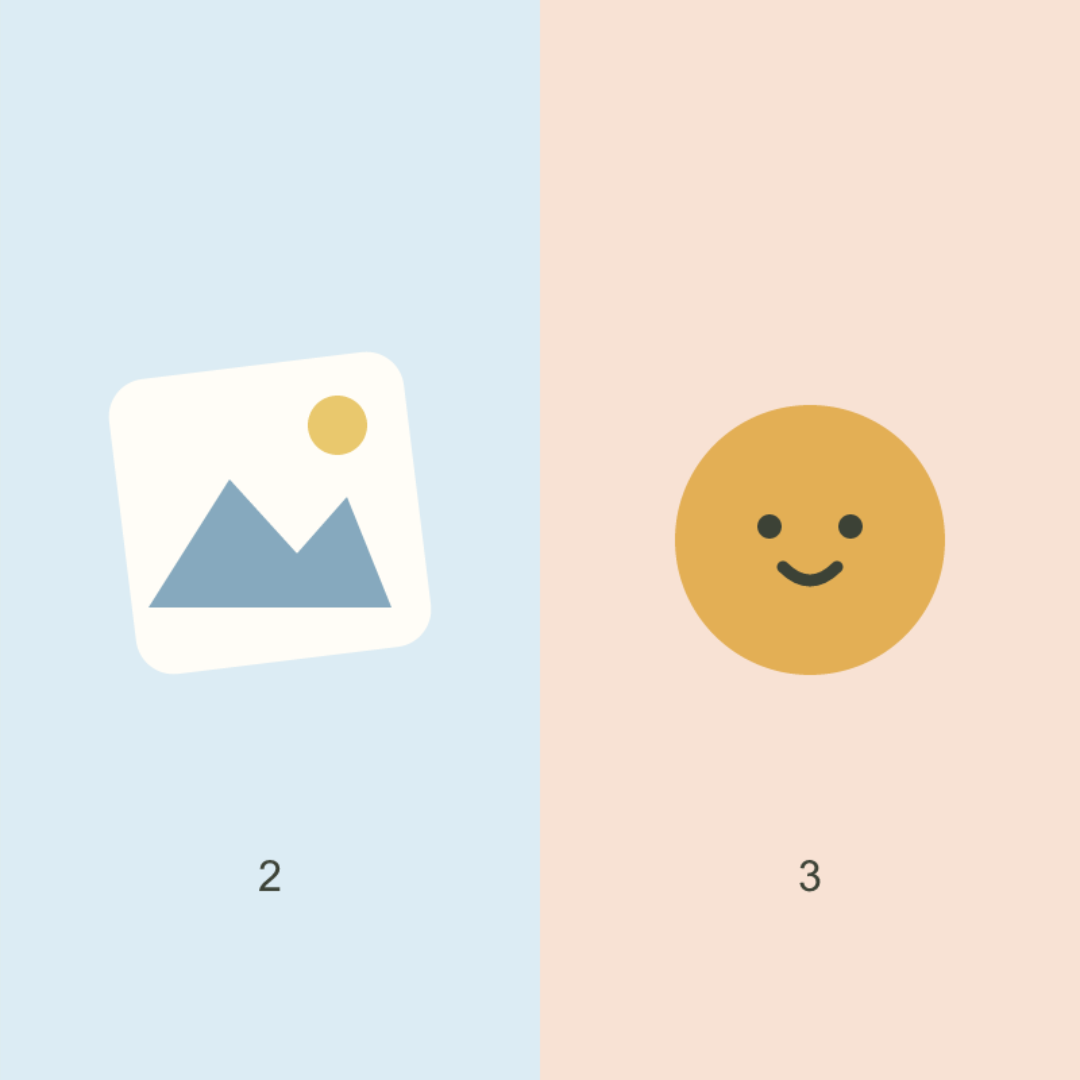
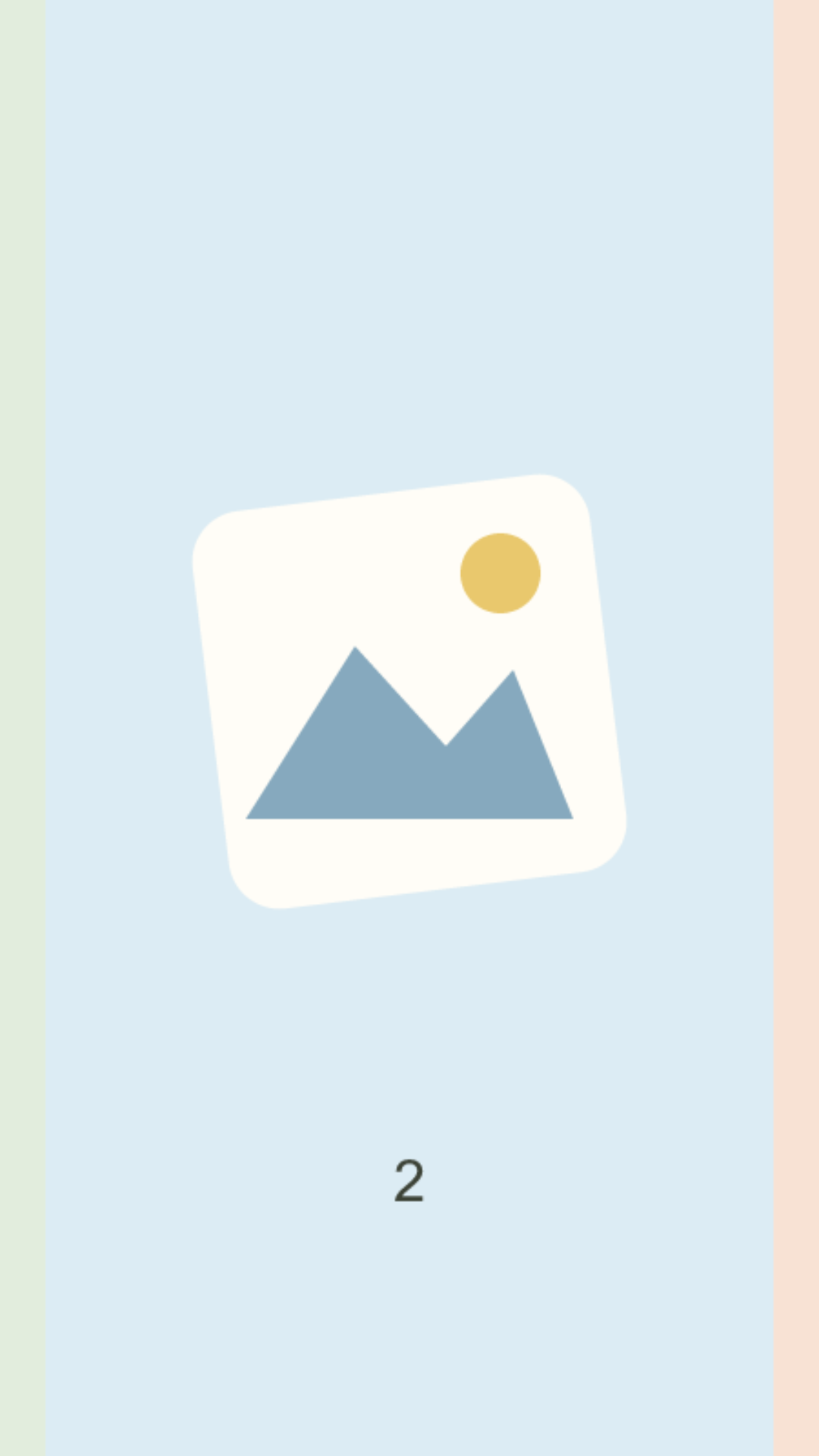
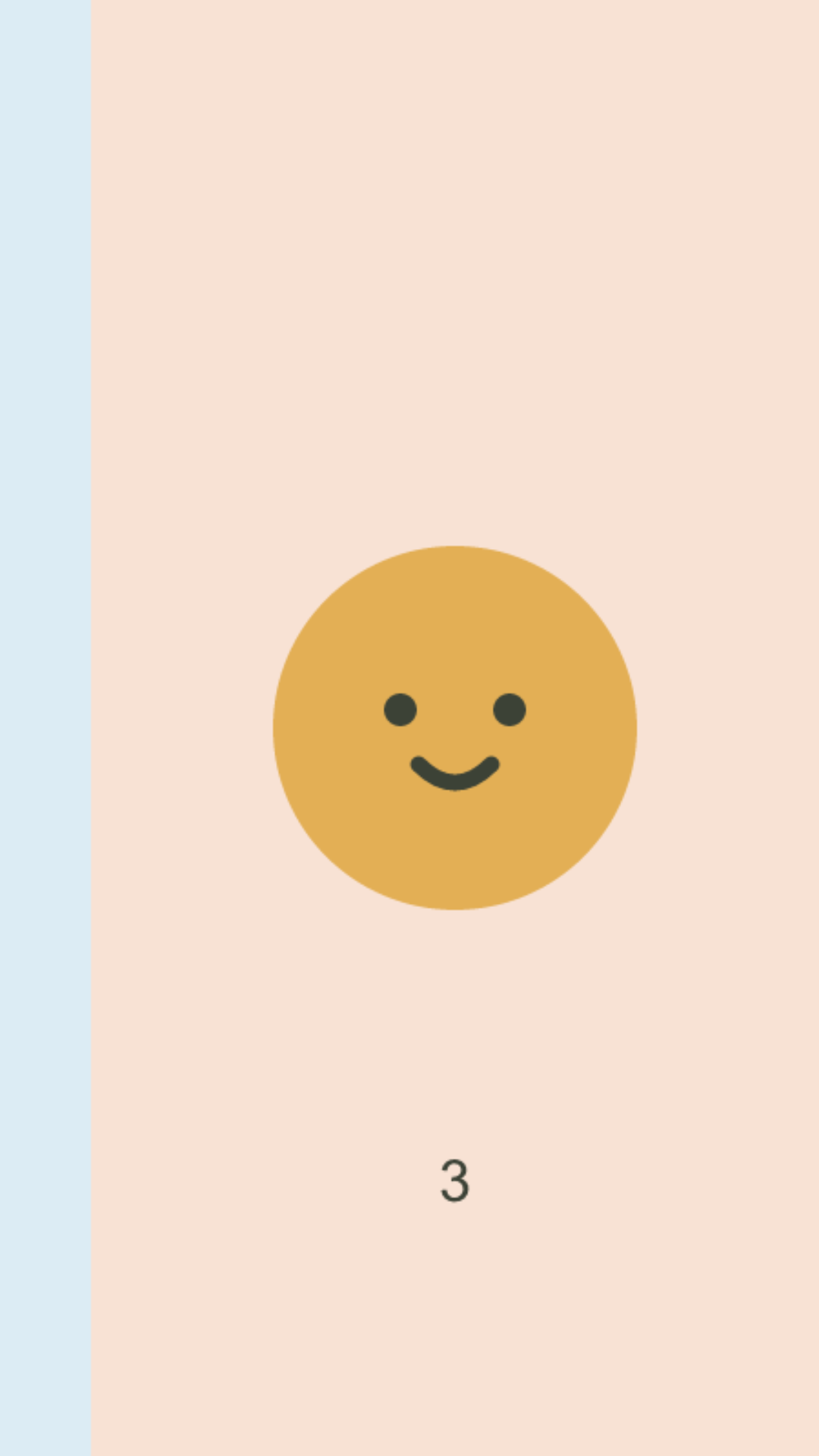
On a phone, dragging the crop and its corners also works. The position controls are useful for small adjustments. Preview zoom helps you inspect details; Crop zoom changes what will be exported. Return to Result after adjusting to check which operation you used.
Some compositions need a different layout
You cannot keep all three subjects in the tall frame by moving the crop: the frame is too narrow. Zooming in removes still more of the source. Move text, choose a different image, or place the whole image on a taller background in Screenshot beautifier.
The story export is 1080 × 1920, but its source crop is only 450 × 800. Enlarging it does not recover detail. A photograph or small lettering may look soft even though the exported file has the requested dimensions. Check the downloaded file at the size people will view it.
Keep essential lettering away from the edges and check the real posting screen before publishing. There is no single margin in this tool that guarantees a safe area across every social app.
What we checked
On 8 October 2026, we used the tool's actual crop geometry and PNG renderer to export centred and right-aligned versions of all four presets. The results file records source rectangles, output dimensions and download hashes.
The sample is a synthetic illustration designed to make cropping obvious. We checked the exported files, not uploads to individual social platforms.