Turn images into a PDF without cropping them
Two image shapes, two PDF layouts. Keep every edge and choose where the empty space goes.
A landscape screenshot and a portrait photo can share one PDF without either losing its edges. The choice is whether the paper follows each image or every page uses the same orientation.
Open PDF essentials, add your images and keep PDF selected as the download format. Each image becomes a page. The layout fits the whole image inside the available space; it does not crop it to fill the paper.
Choose the paper before adjusting margins
Under Image page layout, use Paper size to choose what the PDF is for:
| Setting | What happens | Useful when |
|---|---|---|
| Fit image | The page follows the image's proportions; margins add space around it | Sharing screenshots on screen |
| A4 | Images fit inside A4 pages | Preparing a document for A4 printing |
| US Letter | Images fit inside Letter pages | Preparing a document for Letter printing |
For A4 or Letter, Orientation changes how the paper is arranged. Auto gives landscape images landscape pages and portrait images portrait pages. Portrait makes every new image page upright. Both keep the whole image, but a wide screenshot on an upright page leaves more empty space above and below it.
These settings apply to images you add. Existing PDF pages keep their original paper size. Adding an A4 image page to a PDF does not resize the PDF's other pages.
Try the same two images in two layouts
Download the landscape sample and portrait sample, then add both to the tool. They are simple test graphics, 1200 × 800 and 800 × 1200 pixels.
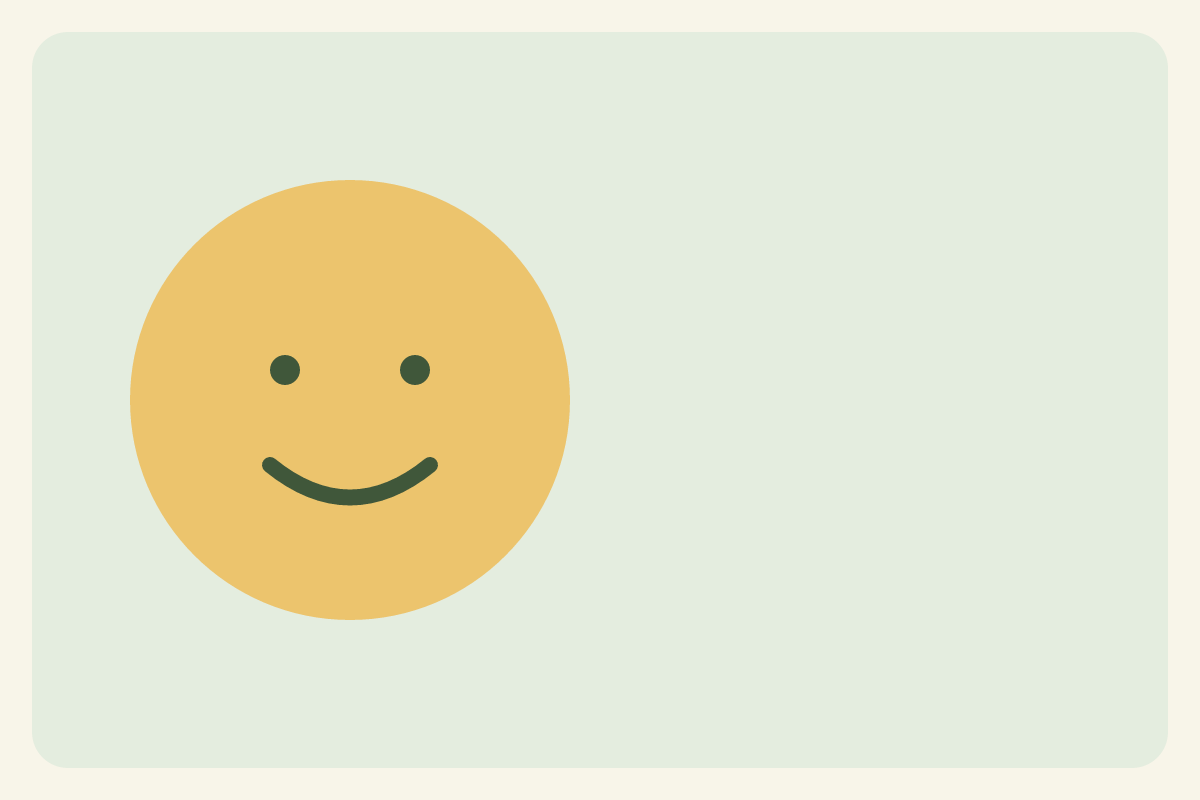
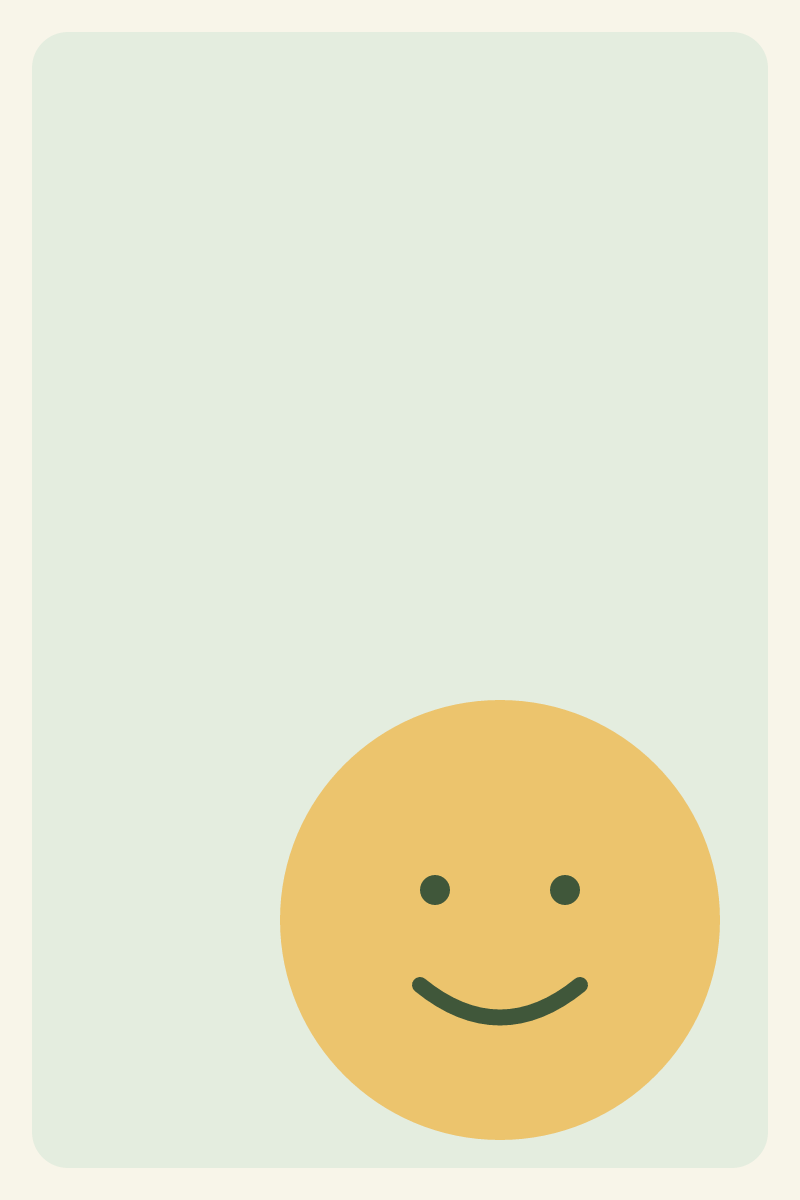
Set Paper size to A4, Orientation to Auto, and Margins to 36 pt. Download the PDF. Then switch the orientation to Portrait and download again.
Compare these mixed-orientation pages with the all-portrait pages. We generated both with the same assembly function used by the tool. Each PDF contains two pages; neither image is cropped. The wide image becomes smaller on the all-portrait version because the page's width is the limiting dimension.
The 36 pt margin is half an inch on each side. It is a minimum clearance, not a promise that all four visible borders will be equal. When the image and paper have different proportions, fitting the whole image leaves extra space on two sides.
Put the pages in reading order
On desktop, drag a page by its handle. On a phone, use Move up and Move down. Keep the pages you want selected, then choose Download PDF for one document. Download separate PDFs produces individual page files instead.
Check the downloaded document before sharing it: page order, orientation, small text and the outer edges of every image. A thumbnail is useful for ordering, but zooming into the PDF is a better way to judge whether screenshot text remains readable.
A larger page does not add detail
Fitting an image onto A4 does not recover text or detail missing from the original. Start with the highest-resolution source you have. If a printer requires a particular pixel density, calculate it in the pixels-to-print converter before exporting.
The results record includes page dimensions, image placement and file hashes checked on 26 October 2026. These are export and geometry checks, not physical printer tests. Your print dialog can apply another scaling step, so check its paper and scaling settings too.