Make a collage without cutting off the important bits
Two image shapes, one grid. Keep every edge or give each subject its own crop.
A square collage grid cannot both fill every cell and preserve every edge of a wide or tall image. Show full image leaves space around it; Crop to fill removes the parts that do not fit. Choose that trade-off before adjusting decorations.
The image collage maker lets you keep the full images or adjust each crop separately. For a repeatable example, download this wide illustration and tall illustration, then add them in that order.

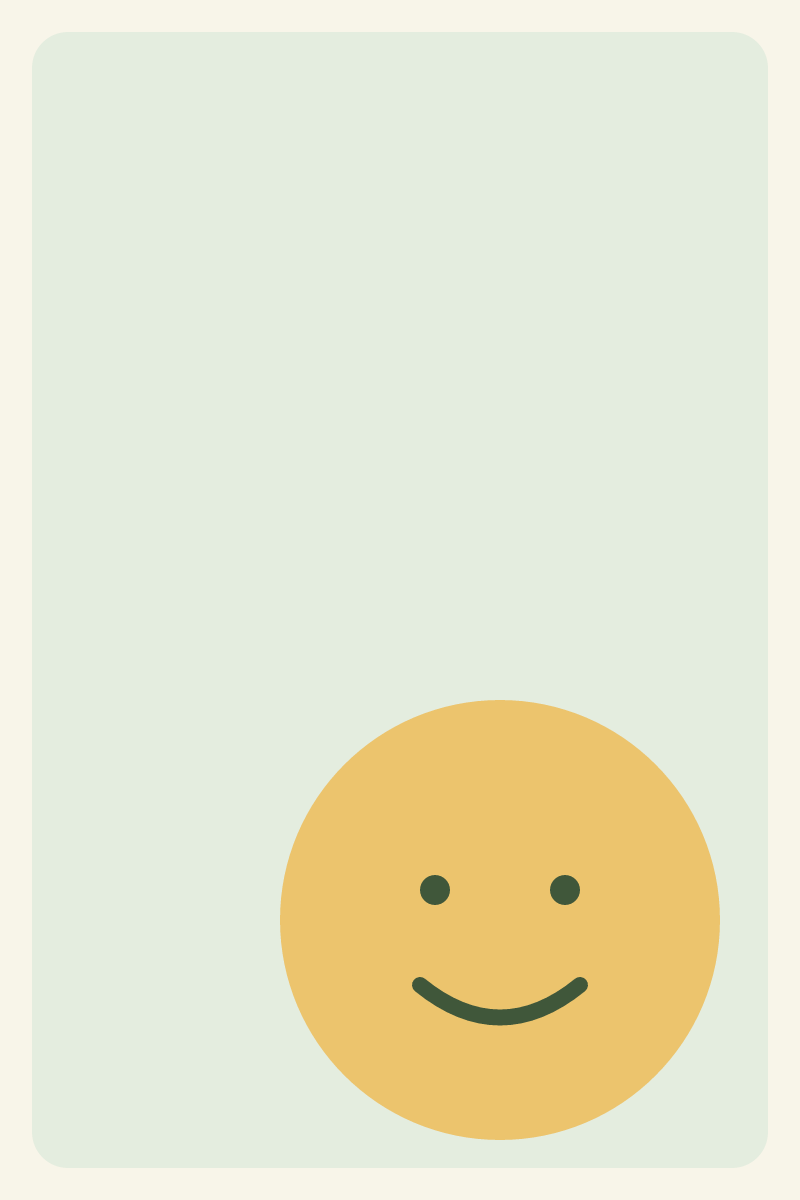
Build the same two-cell grid
Choose Grid under Layout. Set Columns to 2, Cell shape to Square, and Output width to 1200 px. Use 16 px Spacing, 24 px Outer padding and 0 px Corner radius. Leave the heading empty and choose PNG.
The examples use a solid cream background, #FAF9F5. The finished canvas is 1200 × 616 pixels. Each square cell is 568 × 568 pixels: the padding and gap take space out of the available width.
With Image fit set to Show full image, both illustrations stay intact. The wide image has space above and below; the tall image has space on either side. Download the full-image result to inspect it at its actual size.

The empty space is the chosen background, not a missing part of the export. A larger corner radius would also mask the image's corners; zero keeps this comparison focused on rectangular cropping.
Fill the cells and inspect what disappears
Change Image fit to Crop to fill. The cells stay square and the output stays 1200 × 616, but the source area changes:
| Source image | Area kept by a centred square crop | Area removed |
|---|---|---|
| Wide, 1200 × 800 | 800 × 800 | 200 pixels from each side |
| Tall, 800 × 1200 | 800 × 800 | 200 pixels from the top and bottom |
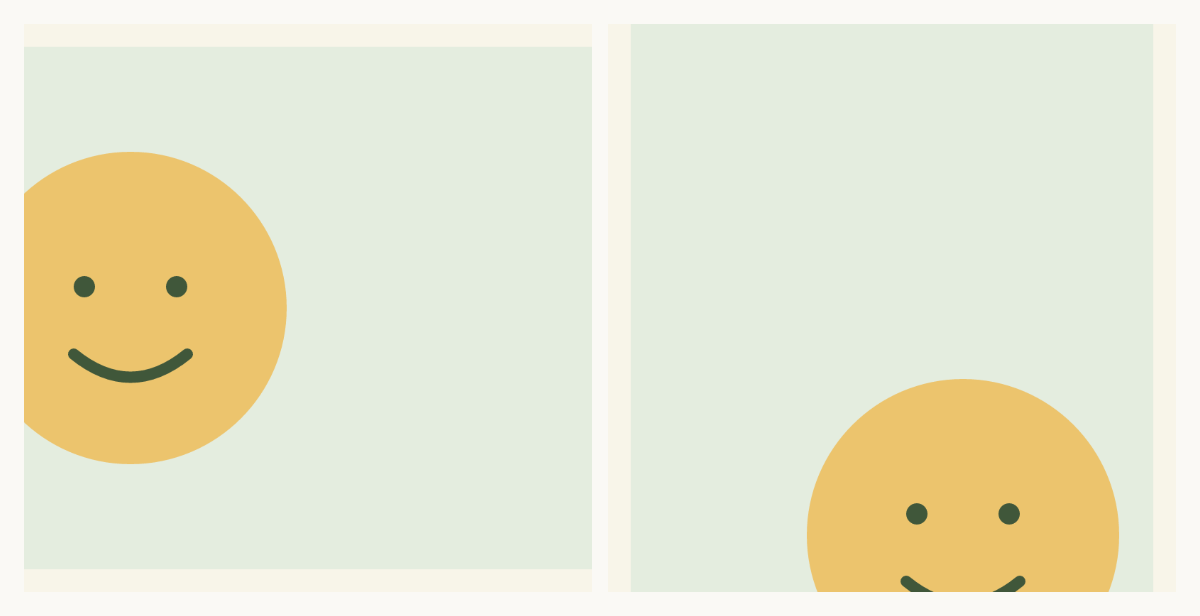
The centred result cuts into both illustrated faces. It demonstrates why equal-sized tiles do not mean every picture is framed well. Nothing has changed in the source files; only the exported composition uses the cropped regions.
Move each crop towards its subject
Select the first image's thumbnail. Under its crop controls, set Horizontal position to 0. This keeps the leftmost 800 pixels of the wide image, where its face is drawn.
Select the second thumbnail and set Vertical position to 100. That keeps the bottom 800 pixels of the tall image. Leave the other position controls at 50. The two crops are independent, so moving the second one does not undo the first.

Download the adjusted result and compare it with the centred version. The crop controls position the visible source area inside a fixed cell. Dragging images to reorder the collage is a different action.
Choose a layout that fits your images
If every edge contains something important—a screenshot with labels, for example—keep Show full image or try Masonry. Masonry uses each image's proportions, so tile heights can differ. A Vertical layout is useful when the images need to read from top to bottom.
On a phone, tap a thumbnail to select its image and use the same position sliders. Check the downloaded file before sharing; a small preview can hide clipped text. Use result sends the finished collage into another image tool if you then need to resize or compress it.
All three PNGs were exported through the tool on 21 October 2026. The results record contains the settings, source rectangles, dimensions and file hashes. The examples reuse our original illustrations; they do not establish that an automatic crop will find the subject in your photos.